
Save Android Voicemail files to Computer
Voicemail is the modern form of answering machine where you can record the greeting message and let people send you voicemail or voice notes when you are not available to answer the phone or there is network outage. You can find a detailed guide to configure voicemail on android to know more about Voicemail.
This article explores the easy steps to transfer voicemail from Android to computer and save it for later usage.
What is Voicemail?
Remember the old-school methods to let a caller record their voice when you are not around to answer the call? These answering machines were required or configured to once by settings greeting messages and passwords and all the unanswered calls would get forwarded to answering machine that would allow a caller to record the messages that can later be retrieved or heard by the owner.
A voicemail is nothing but a modern form of answering machine for smartphones. Unlike landline voicemail, the smartphone or android voicemail comes with lots of handy features that can be used in different means.
However, the basic use of android voicemail is not different from the answering machine on the landline phone.
This article explored the easy steps to transfer voicemail from android to PC. Learn to extract saved voicemails from Android storage to computer.
How To Transfer Voicemails From Android to PC
Transferring the Voicemail to PC helps you to keep a track of all received voicemail notes on the device. Transferring the Voicemail from android to a computer included two steps. At first, you are required to record the received voicemails from Android to SD card using a Visual Voicemail app.
Read here:
Setup and Access Visual Voicemail on Android
In the second step, you need to use a USB or SD card reader to extract all the recorded voicemails from SD card to PC Computer.
Methods to transfer voicemail from android to PC
There are several other methods you can use to transfer the voicemail from android to a computer which are detailed below.
1. Save Voicemails on Android Using a Visual Voicemail App
Some voicemail apps on android are designed to save all the received voicemails for easy access. The saved file names are generally renamed as the number date and time that makes it easy to identify.
Most visual voicemail apps allow you to download the messages directly to/from your android smartphone.
2. Record Android Voicemail to Computer
This may seem a tidy process but the most legit and fail-proof task to transfer voicemails from android to a PC. All you need is to turn your android into an audio device using any 3.5 mm aux cable(male-to-male audio jack).
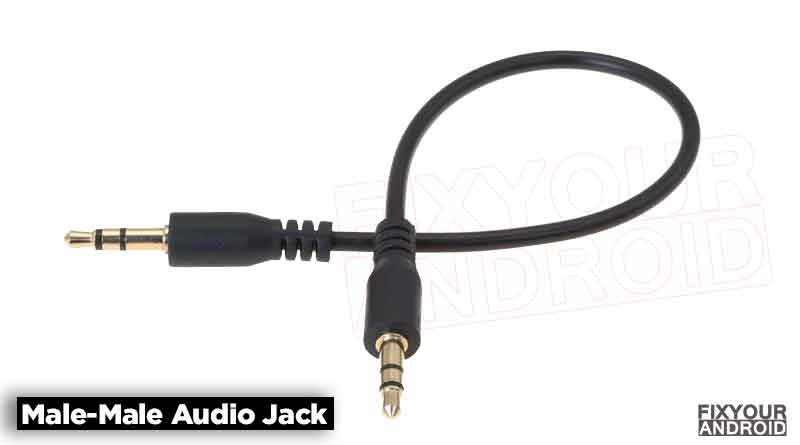
- Insert one end of the aux cable into your android and another end into your PC or laptop.
- Open any basic audio recordings software like windows voice Record or Quick time.
- Select the audio input as your android phone’s jack.
- Start playing the voicemail on android and press the record button on the audio software on PC.
- Once recorded, save the file and name it as desired.
3. Use a Forwarding Service to Send Voicemails to Email
There are several visual voicemail apps that send you the recording or transcribed version of the received voicemail on android to an email address as well.
Another useful option is to sign up for a forwarding service such as Grasshopper or Callhippo that will do the same. Most forwarding services offer both, so if you don’t need an audio recording, or find it difficult to hear some messages, the transcription may be a useful option.
- Read Also: How To Forward A Voicemail?
4. Copy SMVVM folder from android to PC
All the voicemails received on android are stored in a folder named SMVVM folder. This folder usually resided under the system folder on android internal storage which you can access using any file manager app.
You can simply transfer all the received voicemails on your android to PC by simply copying this SMVVM folder from android to PC. Here is the detailed guide you can follow to access and use the SMVVM folder on android.( What is SMVVM? All About the SMVVM and Voicemail )
OTHER RELATED POSTS:
- How to Retrieve the old Voicemail on Android?
- Verizon Visual Voicemail: How to Setup and Access
- Configure and Access Verizon Voicemail on a Land Line
Final Words:
We receive several voicemails on our smartphones in day-to-day life, some of them are important while others are not. In such, losing these voicemails is always a matter of concern. So, here is the guide you can use to transfer the received voicemails from android to PC hassle-free without looking for paid software, an app or an expert. Follow the methods explained in the article and transfer all your important voicemail from android to PC using the method most suitable for you. Also, don’t forget to check our HOW TO section for other useful guides for Android.
WHAT TO READ NEXT?