
How to enable wifi calling to make calls on Android? Enabling a wifi call on Android makes it easy to places outgoing calls over wifi. A call placed or received over wifi on Android works perfectly even on a weak network. But, how to enable a wifi call on Android. Read here.

Enable Wifi Calling Android
Most of the modern Android phone supports wifi calling. There are several apps on Android to assist you to set up the wifi calling on Android. But, you can actually enable wifi calling on Android without any third-party app as well.
Wifi calling is a carrier and wi-fi combo feature. In order to make calls over wi-fi, it is essential that your Android phone and carrier network should support wifi calling.
On Samsung phones, the wifi calling feature is executed by the app com.sec.unifiedwfc.
READ ALSO: HOW TO REVEAL SAVE WIFI PASSWORD ON ANDROID
As all latest Android phones support wifi calling and if your carrier provider supports wifi calling too. You can easily enable it on your Android phone and make calls using the wifi network.
How to Setup Wi-Fi calling on Android?
After the confirmation that your Android and carrier provider is compatible with wifi calling. it’s time to configure it on android. In most cases, the function is not enabled on your Android by default. In order to place calls, you need to enable wifi calling for the first time.
I am using Verizon over Samsung Galaxy S7 Android phone for this tutorial and they both support wifi calling.
To setup Wi-fi calling on Android
- Go to Android settings
- Open Wifi settings and preferences
- Find and “turn on” the wifi calling.
- Select the SIM you want to enable Wifi calling for(in case of Dual SIM cards)
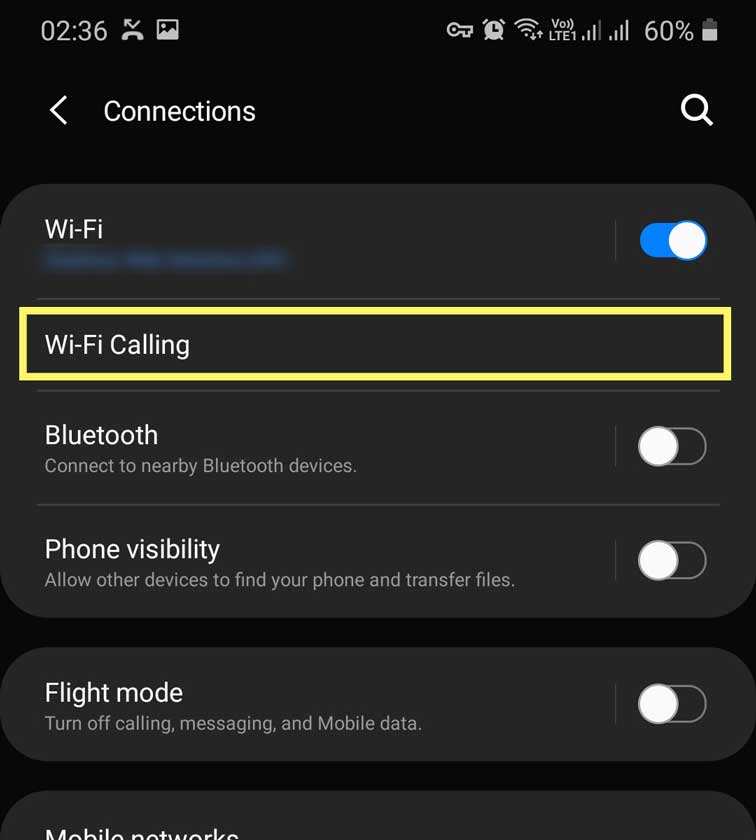
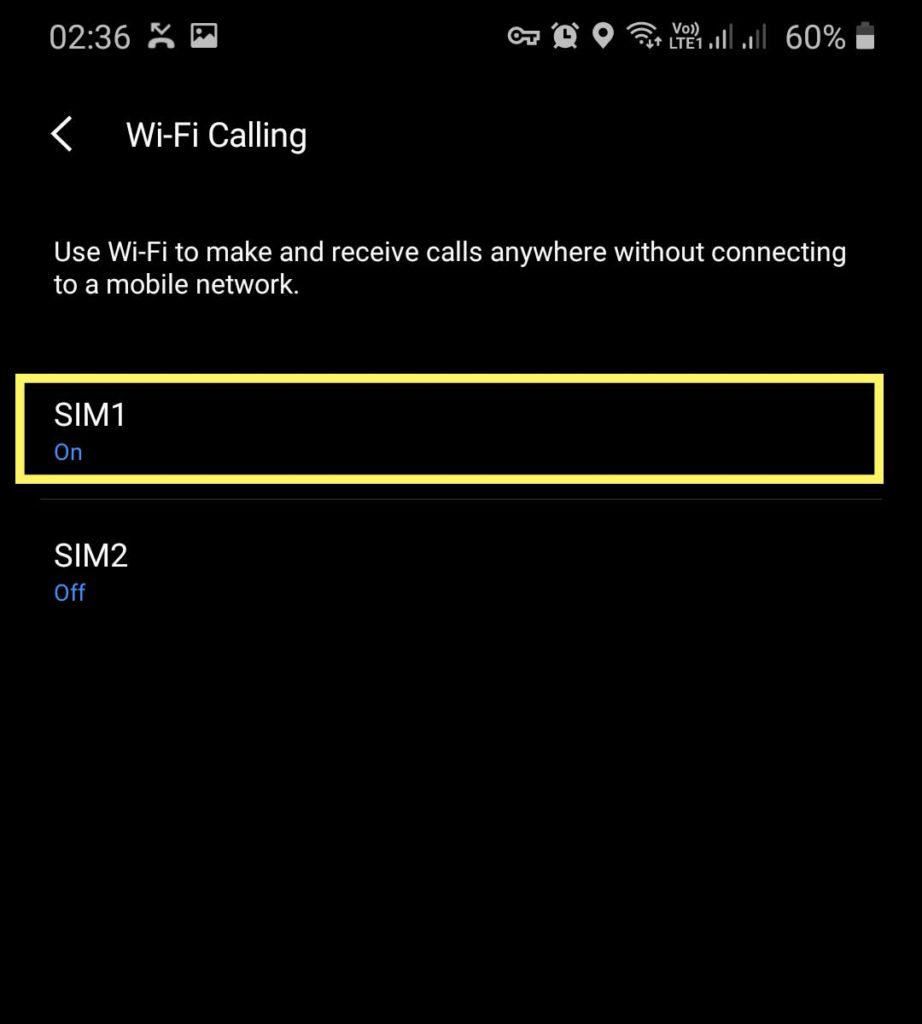
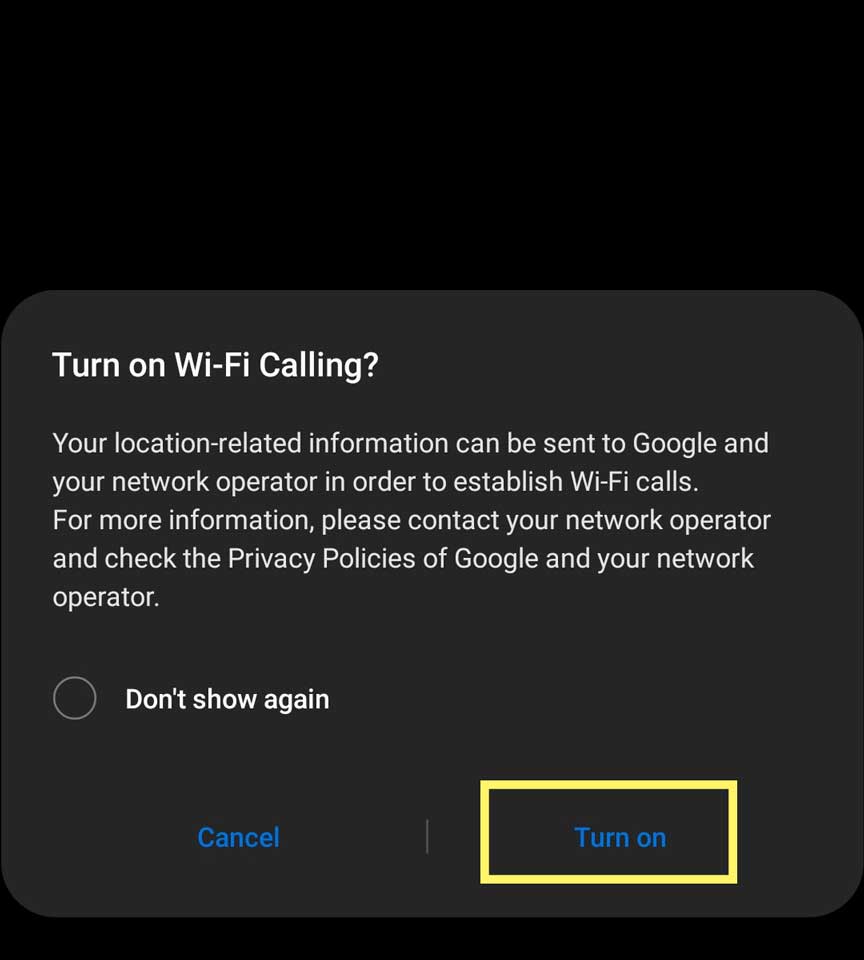
On some Android phones, you might find wifi call settings under developer options. To enable developer settings, go to settings>about and tap 7 times on the model number/version.
Making Calls using Wifi on Android
Once you have enabled wifi calling on Android. It’s time to make your first-ever call using wifi.
To make calls over wifi
- Open dialer app on Android.
- Dial or browser the number you want to call.
- Select the “wifi calling” option on the calling screen.
The call will be initiated using wifi connection your Andriod is connected to. you’ll see “Internet Call” or “Wi-Fi calling” on the notification screen. In some cases, if you find your Android showing some error while calling over wifi, means your carrier doesn’t support wifi calling.
Note: If you are staying outside the USA or other European countries and you like to record the outgoing or incoming calls on your Android. Enabling the Wifi calling will not record the calls. In such you are required to disable the wifi calling to resume call recording.
RELATED: BEST DIALER APPS FOR ANDROID
How to make wifi calls if my carrier provider doesn’t support it?
Well, you can still make a wifi call on your Android even it is not supported by the carrier provider. To make this possible all you need is to configure it manually.
To use VoIP service to place calls using wifi
- Open call settings on the Android dialer app.
- Go to settings
- Select “calling account>SIP accounts“
- Here tap on “Add” button
- Enter the username, password, and server for SIP account
- Tap on Save and restart the device.
How to get a Free SIP Account for Wifi Calling
READ MORE: 10 BEST ANDROID APPS FOR VoIP CALLS
Wifi Calling-FAQ
Do Androids have WiFi calling?
All the latest Android phone support wifi-calling. But, in order to make the call, it is essential that your carrier provider also supports wi-fi calling.
Why is my WiFi calling not working android?
This is probably because either your Android or your carrier provider doesn't support wifi calling. To verify you can see 'wifi calling' option under the call settings on Android.
How do I make calls using WiFi calling?
Making a call over wifi is quite identical to placing a regular call. Once enabled, you will be asked to initiate a wifi call automatically each time you attempt to call.
How do I make sure I’m only using WiFi calling?
To ensure that your Android uses only wi-fi connection to make calls simply put you mobile in airplane mode and turn on wifi to connection. This is a great idea to make sure you are always using wifi to make calls on Android. Especially when you are travelling abroad where regular calls are expensive.
What happens when I lose Wi-fi connection during wifi call?
The call will simply switch automatically to cellular connection if available.
Wifi Calling Android: Conclusion
As you know Wifi Calling is a combo compatibility feature of your service provider and Android phone as well. Most of the latest Andriod phones, however, support wifi calling and you can easily use the wifi connection to make calls on Android. But, if your service provider doesn’t support it. You will need a SIP account to enable it.
RELATED POSTS: